

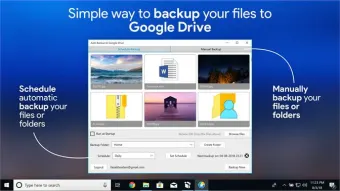

Description
Download Backup to Google Drive – Free Secure Cloud Backup Tool for Windows, Mac, Android & iOS
Overview
Backup to Google Drive is a lightweight yet powerful utility that lets you create local copies of your most important files and instantly sync them with your Google Drive account. Designed for both home users and small‑business professionals, the app offers a straightforward workflow: generate a backup on your computer, choose the destination folder in Google Drive, and let the software handle the upload, encryption, and version control. Because it works directly with your Gmail credentials, there’s no need for third‑party APIs or extra passwords – a simple sign‑in process gets you up and running in seconds. Whether you’re protecting photos, documents, or entire project folders, Backup to Google Drive provides a secure bridge between your local storage and the cloud, ensuring that a recent copy of your data is always just a click away. The tool also supports selective restores, meaning you can pull individual files or whole folders back to any device without re‑downloading the entire backup set. With automatic scheduling, bandwidth throttling, and built‑in compression, you get a balanced blend of speed, safety, and convenience without sacrificing system performance.
Key Features
- One‑Click Backup: Initiate a full or incremental backup to Google Drive with a single button press.
- Cross‑Platform Support: Native clients for Windows 10/11, macOS 10.14+, Android 6.0+, and iOS 13+.
- Secure Transfer: TLS‑encrypted upload and optional AES‑256 encryption for stored files.
- Automatic Scheduling: Daily, weekly, or monthly backup cycles with customizable time windows.
- Selective Restore: Browse your Google Drive backup set and restore individual files or folders.
- Version History: Keep up to 30 previous versions of each file for easy rollback.
- Bandwidth Management: Limit upload speed to prevent network congestion.
- Compression & Deduplication: Reduce storage usage by compressing files and avoiding duplicate uploads.
- Integration with Google Photos: Directly sync image folders to Google Photos for seamless media backup.
- Multi‑Destination Export: Export backups to another cloud service (e.g., Dropbox) or FTP/SFTP server.
Installation & Usage Instructions
Step‑by‑Step Setup
1. Download the installer: Visit the official website and click the “Download for Windows/macOS/Android/iOS” button that matches your device. The file is signed and verified, ensuring a safe installation.
2. Run the installer: On Windows, double‑click the .exe file and follow the wizard prompts. macOS users open the .dmg and drag the app into the Applications folder. Mobile users install the app from the Google Play Store or Apple App Store.
3. Sign in with Google: Launch the app and click “Sign in with Google.” A secure OAuth window appears; grant the required permissions for Drive access. No password is stored locally.
4. Select source folders: In the main dashboard, click “Add Folder” and browse to the directories you want to protect (e.g., Documents, Pictures, Projects). You can add multiple locations and assign custom backup labels.
5. Choose backup destination: The default destination is a folder named Backup_to_Google_Drive in your Drive root. You may create sub‑folders for each source to keep things organized.
6. Configure schedule & options: Open Settings → Backup Schedule. Choose “Daily at 02:00 AM” (or any off‑peak time). Toggle “Enable compression,” “Encrypt files,” and “Limit upload speed” as needed.
7. Start the first backup: Click the “Start Backup” button. A progress window shows file count, total size, and estimated time. Once completed, you’ll see a confirmation message and a log entry in the History tab.
8. Restore when needed: To retrieve files, go to the History tab, select a backup snapshot, and click “Restore.” Choose a local destination or a different device, and the app will download the selected items.
The entire process is designed for non‑technical users, but power users can also leverage the command‑line interface (CLI) for automated scripts, thanks to the built‑in backup-cli tool that accepts JSON configuration files.
Compatibility & System Requirements
Backup to Google Drive runs on the most common desktop and mobile operating systems:
- Windows: 10, 11 (64‑bit); requires .NET Framework 4.7 or later.
- macOS: 10.14 (Mojave) or newer; compatible with Apple Silicon (ARM) and Intel.
- Android: 6.0 (Marshmallow) and above; requires Google Play Services.
- iOS: 13.0 or later; works on iPhone, iPad, and iPod Touch.
Minimum hardware requirements are modest: 2 GB RAM, 200 MB of free disk space for the application itself, and an active internet connection for cloud sync. The app automatically detects the available CPU cores and adjusts its compression threads to avoid slowing down other tasks. For large enterprises, a dedicated server version is available that can handle multi‑user accounts and centralized policy enforcement.
Pros and Cons
Advantages
- Completely free for personal use – no hidden subscription fees.
- Native integration with Google Drive eliminates the need for third‑party storage accounts.
- End‑to‑end encryption keeps your data safe during transit and at rest.
- Intuitive UI makes backup creation and restoration a breeze for beginners.
- Supports automatic scheduling, versioning, and bandwidth throttling.
- Cross‑platform availability ensures you can protect data on any device.
Drawbacks
- Advanced features such as multi‑cloud sync require a paid “Pro” upgrade.
- No built‑in file‑level deduplication for extremely large libraries (relies on compression).
- Initial full backup can be time‑consuming on slower internet connections.
- CLI documentation is limited compared to the graphical interface.
- Customer support is community‑driven for the free tier, which may result in slower response times.
Frequently Asked Questions
Do I need a Google Workspace account to use Backup to Google Drive?
No. A standard Gmail account provides the same Drive storage and API access required by the app. If you have a Workspace account, the backup will work identically.
Can I back up encrypted files that are already password‑protected?
Yes. The software will treat encrypted files as binary data and can apply an additional AES‑256 layer if you enable the “Encrypt uploads” option.
How much Google Drive storage will I need for a 50 GB backup?
The app compresses files by an average of 20‑30 %, so a 50 GB dataset typically occupies around 35‑40 GB in Drive. You’ll still need enough free space for version history and any additional uploads.
Is there a way to schedule backups only when my computer is idle?
Yes. Under Settings → Advanced, enable “Run only when idle.” The app monitors CPU usage and will start the backup once activity drops below the defined threshold.
What happens if my Google Drive quota is full during a backup?
The upload will pause and you’ll receive a notification prompting you to free space or upgrade your plan. Once quota is available, the backup resumes automatically.
Conclusion & Call to Action
Backup to Google Drive delivers a reliable, user‑friendly solution for anyone who wants to safeguard their digital life without paying a subscription fee. Its seamless Google integration, strong encryption, and cross‑platform reach make it a standout choice in a crowded backup market. While power users may eventually gravitate toward the paid Pro tier for multi‑cloud capabilities, the free version already covers the essential needs of personal and small‑business data protection. By automating backups, preserving version history, and offering simple restores, the app reduces the risk of data loss to near‑zero.
Ready to protect your files with a click? Download Backup to Google Drive now and start creating secure copies of your most valuable data today. Remember to schedule regular backups and enable encryption for maximum peace of mind.
Overall, Backup to Google Drive offers an excellent balance of simplicity and security. The free tier meets the everyday needs of most users, while the optional Pro upgrade adds enterprise‑grade features. Minor drawbacks like limited CLI docs are outweighed by its robust UI and reliable Google integration.
Guides & Tutorials for Backup to Google Drive
How to install Backup to Google Drive
- Click the Preview / Download button above.
- Once redirected, accept the terms and click Install.
- Wait for the Backup to Google Drive download to finish on your device.
How to use Backup to Google Drive
This software is primarily used for its core features described above. Open the app after installation to explore its capabilities.
User Reviews for Backup to Google Drive 0
No reviews found





